Wednesday, February 22, 2012

Fetch XML Builder for CRM 2011.

Many of the MS Dynamic CRM 4.0 lovers used handy Fetch XML Builder to generate complex fetch XML quires to retrieve the data. So those developers  dreams for having a version of fetch XML builder, which supports for CRM 2011.

Why it doesn’t support for CRM 2011, if the CRM web service is still available in CRM 2011 for backward compatibility? Developers tend to think that it doesn’t support, when they get below run time error.
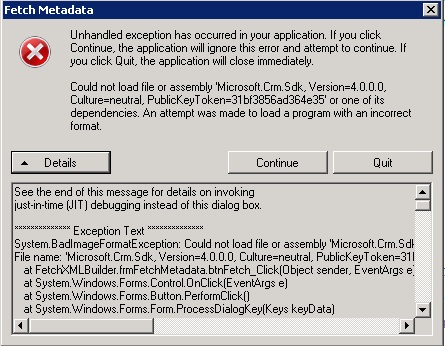

You get above runtime error since you are running Fetch XML builder probably in 64 bit CRM server or 64 bit CRM development machine. Fetch XML builder installation is shipped with 32 bit CRM 4.0 SDK dlls and not 64 bit dlls. So in order to fix above run time error, you just need to replace 32 bit SDK dlls in Fetch XML builder installation folder from 64 bit SDK dlls, which can be found at CRM 4.0 SDK.

Using fetch XML to write complex queries is still a good option since execution of complex query may be 100 times faster than complex CRM LINQ query, which returns same result and Fetch XML can still be executed using Organization Service introduced on CRM 2011. And also it supports outer join, where outer join in CRM LINQ query is not straight forward.

Would you like to try Fetch XML builder for CRM 2011? if yes here we go..
1.       Download Fetch XML builder from Fetch XML Builder and install it on your local machine or a server.
2.       If you need a key please drop me your email and I will send you a key.
3.       If your machine is 64 bit, Replace 32 bit CRM 4.0 SDK dlls,which can be found at Fetch XML builder installation folder, from 64 bit SDK dlls and you can download 64 bit CRM 4.0 SDK dlls from my share(64 bit SDK dlls)

Are you a Dynamic CRM Fetch XML Builder? I am..

--Thushara Manchanayake--

Tuesday, February 14, 2012

How CRM 2011 handles Max Length of text field.

When we increase Max Length of text field and click save at field customization area, it alter relevant column in CRM back end (SQL server) and we don’t even need to publish customization. But when we decreased Max Length of a field, it affects to CRM front end only and not in back end SQL server. So SQL Server holds the increased length as it was. It means that you can save text, which is not allowed enter in CRM front end, using SDK.

 --Thushara Manchanayake--

Monday, January 23, 2012

Discovery service URL is not https://dev.crm.dynamics.com for CRM online anymore

“An unsecured or incorrectly secured fault was received from the other party. See the inner FaultException for the fault code and detail.”

When you used https://dev.crm.dynamics.com to connect into CRM online to register plugin, you will get above error message and you may end up with no solution to fix this issue. There are many blogs and troubleshooting items in MSDN to fix this issue and none of them will help you now with latest CRM online environment. I couldn’t find any blog related to this new issue and found the solution myself. There are many blogs created in last year, which may mislead you now since they tell you to use https://dev.crm.dynamics.com  as discovery URL to connect into CRM online.

Actually those blogs are not valid any more. With latest MS CRM online, we must use URL, which is used to browse CRM using browser that is https://<OrganizationName>.crm.dynamics.com


--Thushara Manchanayake--

Tuesday, November 29, 2011

Unable to cast object of type 'Microsoft.Xrm.Sdk.Entity' to type '....'

When you use early bound classes to query the data in CRM 2011 you will get InvalidCastException with above error message when you are missing "serviceProxy.EnableProxyTypes();" at your OrganizationServiceProxy as below.

Wednesday, August 10, 2011

Example of CCA Hosted Web Application with Bing Search

Customer Care Accelerator (CCA) introduced for Microsoft Dynamic CRM 2011 is built using robust Microsoft User Interface Integration (UII) framework and CCA is the collection of hosted applications (CRM, Case, My Dashboard, Dialer, CTI, Notepad…  ), which work together to provide desired functionality.
So we shall start with simple example application to see how powerful UII framework is.

Requirement

Add a another workflow step “Bing Search” in between existing workflow steps and when user was unable to find CRM knowledge base items, which are related to selected case to resolve case, then user should be able to do Bing Search on internet using case title.

Integration Points:

When user clicks Bing Search, CCA should automatically pick the CRM case title and trigger the Bing Search by case title as below.

Implementation

What a powerful robust UII framework, we can implement above requirement with no any custom code, but just with some configuration entiries.

Create Hosted Web Application


·         First we must create Hosted Web Application using UII Web Application project template and it will ask URL of the hosted web application.

·         Then we must inspect the web application to identify the controls, which we will deal with, using UII inspector. It generates binding, as showing in below screens, required to identify the controls. Ones you pressed the add control button on UII inspector, it will copy the binding into UII web application project.
      Note:You should edit control name, which was auto generated by Inspector, with meaningful unique name. 


·         Create workflow activity to find the case title and do the Bing Search based on title.

Microsoft.Uii.HostedApplicationToolkit.Activity provides pre-defined set of work flow activities to deal with hosed applications within CCA and following sections describe what each activity does in workflow.

Get Control Value


Get the case title from the “CRM Case” hosted web application and assign it to CaseTitle output variable.

Control Finder

Find the control “Search Text”, which will be identified by binding that was generated by inspector, at Bing Search hosted web application.


Set Control Value

Set Search Text as CaseTitle, which was initialized at get control value section.

Execute Control Action

This will trigger default action of search button at “Bing Search” hosted web application.

·         Configure Action.
This allows you to configure action detail on Bing Search web application, which will be deployed at CRM 2011,  using workflow we just completed.


Browse work flow we just completed.


·         Deploy web application as a hosted web application on CRM 2011.
This will deploy all configuration entries required to run the application on CCA with CRM 2011. Clicking Deploy on context menu shows the logging window to log into CRM 2011 and it will allow you to deploy hosted web application “Bing Search”.


·         Add “Bing Search” into workflow steps in CCA.

In order to add Bing Search into workflow steps at above location at CCA, you must add below two configuration entries at UII section in CRM setting area.


Then you are good to go. Have fun! We haven’t done any single line of code to do this example.


Sunday, July 17, 2011

Gallery Feature to CRM 2011

One of the requirements that you may need to deal with is, when you develop public facing CRM web portal, showing gallery of images of products, equipment and so on. So how we can add gallery feature to web portal using out of the box CRM functionality? What about if used note section of an entity to attach the images? One of the limitations of note (annotation) entity is, it is not customizable entity. Why we need to customize the note entity? Because we need to identify the attached note images, which need to be displayed on web. Otherwise web portal shows attachments, which were added for other purposes by the user. Proposed solution to handle that situation is having intermediate entity to attach images.


Download Componant

Features of the solution

• Can be plugged this with any entity with 0 code changes.

Note: When you create one to many relationship between your entity and new_Gallery, you must name the lookup field name as "<publisher prefix><entity>id". Publisher Prefix has been set to “new_” in constant class.

• There is back end plugin to copy the images, which will be added to note section of Gallery entity, into the image folder of your web portal. Plugin will remove the image from the web portal, when you removed that image from the CRM note section.

Configuration for testing


• Import CRM solution, which is located at “..\CRM2011.Galleries\CRMSolution”
• Edit EntityName and EntityId properties of the control reference at default.aspx as required.
<uc3:viewgallery id="ctrlViewGallery" entityid="C21106C1-B491-E011-8551-0800270D5292" entityname="product" runat="server"></uc3:ViewGallery>
• Edit App setting values at web.config as required.
<add value="http://localhost" key="CRMServiceUrl"></add>
<add value="OrganizationName" key="CRMOrganizationName"></add>
• Edit below app setting value as required and then add it into the app setting section of web.config of CRM 2011
<add value="C:\ MyBlog\CRM2011.Galleries\images" key="WebPortalImagePath"></add>
• Deploy plugin “CRM2011.Galleries.Plugins” using solution located at CRM2011.Galleries.Plugins\Solution
• Set AppPool to run the web application with required credential to access CRM service.
• Give read write access level permission to CRMAppPool user for the image folder of the web portal.

Then you are good to go.

--Thushara Manchanayake--
http://dynamicscrmhelper.blogspot.com